Showing posts with label Hacks. Show all posts

Google Buzz


Do you want to have a Google buzz in your Blog?
ok Follow my instructions...

Log in to your blogger account
go to "Design" > "Edit Html"
Now find this piece of Code below
<data:post.body/>
Immediately before that paste this code
<div style="float:right;padding:4px;">
<a title="Post on Google Buzz" class="google-buzz-button" href="http://www.google.com/buzz/post" data-button-style="normal-count" data-locale="en_IN" rel="nofollow" expr:data-url='data:post.url'></a>
<script type="text/javascript" src="http://www.google.com/buzz/api/button.js"></script>
</div>
*If you need a smaller compact button, then change normal-count to small-count in the code.
*If you want to show the button on the left rather than on the right, then change float:right to float:left  in the code


Show/Hide Contents


How to Implement to your blog?
Log in to your Blogger account
Go to "Design" > "edit html"
Find this piece of code
</head>
Immediately Before that paste this code
<style type="text/css">
.commenthidden {display:none}
.commentshown {display:inline}
</style>
<script type="text/Javascript">
function togglecomments (postid) {
var whichpost = document.getElementById(postid);
if (whichpost.className=="commentshown") { whichpost.className="commenthidden"; } else { whichpost.className="commentshown"; }
} </script>

How to use on your post?
<a aiotitle="" href="javascript:togglecomments('hideshowdemo')">+/- Click Here to Expand and Collapse</a>
    <div class="commenthidden" id="hideshowdemo"><ul>
    <li><a href="Your Url">Link Name</a></li>
    <li><a href="Your Url">Link Name</a></li>
    <li><a href="Your Url">Link Name</a></li>
    </ul></div>
Change The Url and Link Name With your Own...

Language Translator for Blogger


If you are having a blog and receiving visitors from various countries and cities of the world, then they may or may not be comfortable with the language of your blog. So adding a translator button or a widget is always useful.


Two options to add a translator:
I.
Log in to Blogger
Go to Layout and then Add a Gadget -> HTML/Javascript
Now copy and paste this code in to it:
 Source: Google
<div id="google_translate_element"></div><script>
function googleTranslateElementInit() {
new google.translate.TranslateElement({
pageLanguage: 'en'
}, 'google_translate_element');
}
</script><script src="http://translate.google.com/translate_a/element.js?cb=googleTranslateElementInit"></script>
Then Save.

II.

Log in to Blogger
Go to Layout and then Add a Gadget -> HTML/Javascript
to get the code, Click this MyDataNest
and paste to the "html/js" then save.

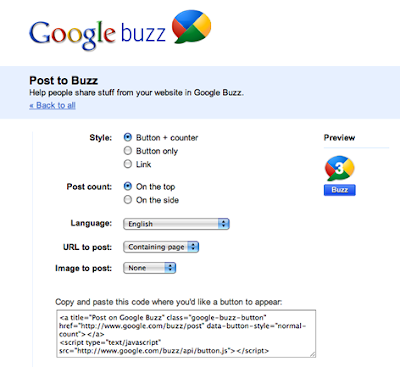
Google Buzz Buttons [With Share-Counter]


Instructions to add these official Google-Buzz buttons (to Blogger Blogs):
STEP #1
Visit this page: Google-Buzz Stuff
Click on the link "Post To Buzz" and in the next page,
select the type of button you want to use on your blog.


URL To Post       - Containing Page
Image To Post     - Let it be None.


STEP #2
Log in to Blogger, go to Layout -> Edit html and tick the tick-box "Expand Widget Tempaltes".
And find (CTRL+F) this code in the tempalte:
<data:post.body/>
Immediately Before that paste this code below,
<!--BUZZ-STARTS-->
<div style='border:0px !important;text-align:right;margin-top:-42px;'>
Google Buzz Code Here</div>
<!--BUZZ-STOPS-http://youtrickz.blogspot.com-->
Make sure to change the Google Buzz Code with the code you got from the step 1
Then Save.

Auto Highlight


Here you will see how to make a Auto Hightlighter for your blogs or websites.
See Instruction on how to implement on your blog...


Login to your dashboard--> layout- ->Page Elements
Click on 'Add a Gadget' on the sidebar.
Select 'HTML/Javascript' and add the code given below and click save.
<textarea rows="5" cols="15" onfocus="this.select()" onmouseover="this.focus()" style="display: inline;" name="txt" onclick="this.focus();this.select()">Put your Contents right here</textarea>

Note : Remember to replace Enter Your Content Here with your real content.


Blog compatible to Mobile Phones


Blogger is now ready on your phone
how to implement to your blog?follow the simple steps below...


Sign into your Blogger account > Design > Edit html
Find this piece of code 

<b:include data='blog' name='all-head-content'/>
Immediately below that paste this code 

<meta content='IE=EmulateIE7' http-equiv='X-UA-Compatible'/>
<b:if cond='data:blog.isMobile'>
<meta content='width=device-width, initial-scale=1.0, user-scalable=0' name='viewport'/>
<b:else/>
<meta content='width=1100' name='viewport'/>
</b:if>

Save the Changes!
That's it! Now, your visitors can access your blogger blog through mobile phones.

Speedup Pc 10x


Do you want to increase your pc speed than before?,i try this before and its working for me,it really makes Your pc faster that a speeding bullet lols.


Ok so let's start,
Just get one Notepad


Inside the notepad type the following.
Mystring=(80000000)


Now click on File > Save as,
type Ram.vbe then save


Now check your desktop and you will see like this


Click it Twice every time you start your pc...


Warning: Don't click on it too much, because it will start to slow down your computer. You will have to click on it every time you start your computer.

Disable Right Click


Sign in to your Blogger dashboard > layout
Add a Page element > html/javascript

Copy Code below and paste on html/js box
<SCRIPT language=JavaScript>
<!-- http://www.spacegun.co.uk -->
    var message = "Sorry...the work is copyrighted";
    function rtclickcheck(keyp){ if (navigator.appName == "Netscape" && keyp.which == 3){     alert(message); return false; }
    if (navigator.appVersion.indexOf("MSIE") != -1 && event.button == 2) {     alert(message);     return false; } }
    document.onmousedown = rtclickcheck;
</SCRIPT>

You can change the text in red color,with your own text.
Then save.

Drag and Share


How to put Drag and Share Image and link to your Blog?


Log in to your Blogger account
Hit Design > Edit Html


Find this piece of code
</head>
Immediately before that, paste this code
<!--DRAG-TO-SHARE-STARTS-->
<link charset='utf-8' href='http://files.main.bloggerstop.net/uploads/3/0/2/5/3025338/prettysociable.css' media='screen' rel='stylesheet' type='text/css'/>
<script charset='utf-8' src='http://files.main.bloggerstop.net/uploads/3/0/2/5/3025338/jquery-1.3.2.min.js' type='text/javascript'/>
<!--[if lte IE 6]><script src="http://files.main.bloggerstop.net/uploads/3/0/2/5/3025338/dd_belatedpng.js" type="text/javascript" charset="utf-8"/>
<![endif]-->
<script charset='utf-8' src='http://files.main.bloggerstop.net/uploads/3/0/2/5/3025338/jquery.prettysociable.js' type='text/javascript'/>
<!--DRAG-TO-SHARE-STOPS-http://youtrickz.blogspot.com-->
Next find this code in the template:
</body>
And immediately ABOVE/BEFORE it, paste this code:
<!--DRAG-TO-SHARE-STARTS-->
<script charset='utf-8' type='text/javascript'>
$.prettySociable();
</script>
<!--DRAG-TO-SHARE-STOPS-->
For Link (hyperlink) with this hack will look like this:
<a href="http://www.google.com/" rel="prettysociable">Link To Google</a>
Sample Link:

YouTrickz


And for Image with this hack will look like this:
<a href="http://www.google.com/" rel="prettysociable"><img src="http://www.google.co.in/intl/en_com/images/logo_plain.png" /></a>
Sample Image:

ColorBox Effect

First of all, log in to your blogger account
Next go to Edit html
Back your templates before doin this effect ok.
Now Find this piece of code
</head>
Immediately before that paste this code


Then click


For pictures format: (Change rel"Example2,example3,example1,)
 <a href="http://i36.tinypic.com/nosp4x.jpg" imageanchor="1" rel="example2" title="Marylou on Cumberland Island" style="margin-left: 1em; margin-right: 1em;"><img border="0" height="283" src="http://i36.tinypic.com/nosp4x.jpg" width="420" /></a>
Click this image to see Demo:


For Video format: (remove "/watch/v=")
Click this link to see Demo:
Carino Brutal - Skapshock
<a class='youtube' href="http://www.youtube.com/v/Q021grFmB4s" imageanchor="1" rel="example2" title="Your title" style="margin-left: 1em; margin-right: 1em;"><img border="0" height="283" src="Your Image url" width="420" /></a>

For Inframed page format:
Click link below to see Demo:
<a class='iframe' href="http://www.google.com/">Google Inframed</a>

Remove Blogger Navbar

Fist log in to your Blogger account
click on Design,click on Edit Html Tab

Before you try this make sure to backup your templates just incase.
Now find this piece of code

/* Variable definitions


Immediately before that paste this code below
#navbar-iframe {
display: none !important;
}

Then click Preview first,
Then hit 

Lightbox Image Effect

Log in to Blogger,
Go to Layout -> Edit HTML tab
Backup your Template first
Find this code on your template
</head> 

Immediately before that paste this code below:
<!--LIGHTBOX-IMAGES-STARTS--><link rel="stylesheet" href="http://files.main.bloggerstop.net/uploads/3/0/2/5/3025338/lytebox.css" type="text/css" media="screen" />
<script type="text/javascript" src="http://files.main.bloggerstop.net/uploads/3/0/2/5/3025338/lytebox.js"></script><!--LIGHTBOX-IMAGES-STOPS-->

Then click Save.

For Picture format:
<a href="http://TARGET_ADDRESS_OF_THE_IMAGE.jpg" rel="lytebox"><img src="http://SOURCE_ADDRESS_OF_THE_IMAGE.jpg"></a>

Demo:


Credits to Bloggerstop.net

Adding Snowflakes

Log in to Blogger,
Go to Layout,
Click on Add a Gadget and select it as HTML/JavaScript.

Falling SnowFlakes, use this code:
<script language="JavaScript" src="http://files.main.bloggerstop.net/uploads/3/0/2/5/3025338/falling_snowflakes.js">
    </script>

Falling leaves, use this code:
<script language="JavaScript" src="http://files.main.bloggerstop.net/uploads/3/0/2/5/3025338/falling_leaves.js">
    </script>

Preview first then Save.

Blogger Favicon


Log in to your Blogger account
go to Edit html
make sure to back up your templates first
Now find this code
</head>
Immediately before that paste this code below

<link href="Your Favicon URL" rel="shortcut icon"></link>

Change the Link in Red with your Icon
Preview it first
Then Save.

Selective Display of Widgets on Blogger


Before getting into the details of selective display,let us discuss about the different types of pages on blogger.
1) home page- yea its your blogs home page as the name suggests(actually this is not a type. but i will still include it here..)
2) Archive Page- Refers to archive pages..
3) Item Page - Refers to Post Pages
4) Index Page - Includes home page + label page + search results page
5) Static Page – The newly introduced Blogger Pages
Selective Display..

There are different conditions to check the page type. You can use these conditions for the selective display.

You might like to display a welcome message on the home page only..
<b:if cond='data:blog.url == data:blog.homepageUrl'>
Hi to all welcome to WidgetsCorner
</b:if>
Displaying on all pages other than the homepage 
<b:if cond='data:blog.url != data:blog.homepageUrl'>
Seen to all pages but not for Homepage
</b:if>
Displaying something on the Archive Pages..
<b:if cond='data:blog.pageType == &quot;archive&quot;'>
Hello this is only on Archive page
</b:if>
Displaying something on non Archive Pages..
<b:if cond='data:blog.pageType != &quot;archive&quot;'>
For non archive only
</b:if>
Displaying something on post page only
<b:if cond='data:blog.pageType == &quot;item&quot;'>
Post page seen only
</b:if>
Displaying something on non post page only
<b:if cond='data:blog.pageType != &quot;item&quot;'>
This is a non post page
</b:if>
Displaying something on static  pages only
<b:if cond='data:blog.pageType == &quot;static_page&quot;'>
Hi this is a static page
</b:if>
Displaying something on  all other than static pages
<b:if cond='data:blog.pageType != &quot;static_page&quot;'>
Hi this is not a static page
</b:if>
You can use the conditional thing for the index type pages. But i don't find much use in that.

Now displaying something on a particular url only (may be a particular post page only or something like that)

<b:if cond='data:blog.url == &quot;The_Selected_Page_Url&quot;'>
This will be displayed on The_Selected_Page_Url only
</b:if>
(you will have to replace The_Selected_Page_Url with the url where you need the widget to be displayed..)

Now displaying something on all pages other than a particular url
<b:if cond='data:blog.url != &quot;The_Selected_Page_Url&quot;'>
This will not be displayed on The_Selected_Page_Url
</b:if>
Now how to use two conditions (or more).. the logical AND thing.. :)

<b:if cond='data:blog.url != &quot;The_Particular_Page_Url1&quot;'>
<b:if cond='data:blog.url != &quot;The_Particular_Page_Url2&quot;'>
This is not Particular_Page_Url1 and This is not Particular_Page_Url2
</b:if>
</b:if>
The else thing..
What if you need to display something on the homepage and something else on all other pages.. here comes the use of if else
<b:if cond='data:blog.url == data:blog.homepageUrl'>
This is the homepage
line1
line2
<b:else/>
This is not the homepage
line 3
line4
</b:if>
Different combinations are possible..
Limitations
I don't see a way to use OR conditions,
There isn't any direct easy way to include AND in conditional statements
The main drawback is that we cant enclose an entire widget within the b:if tag.. you will get some message telling that a b:section cant have b:if s ie you can wrap an unexpanded widget within a b:if condition


Wrapping a widget with the conditional tags
Every widget other than the BlogPost Widget has this general structure
<b:widget id='something' locked='' title='' type=''>
<b:includable id='main'>
Somethings here
</b:includable>
</b:widget>

Wrapping conditional tags can be done as
<b:widget id='something' locked='' title='' type=''>
<b:includable id='main'>
<b:if cond='data:blog.url == &quot;The_Particular_Page_Url&quot;'>
Some things here
</b:if>
</b:includable>
</b:widget>
This code will display the widget on The_Particular_Page_Url only (you have to provide this url)

Another Limitation..
wrapping the blogpost widget is little complicated as it has many b:includables.. yea you can do that too.. :)

Another Important B:if condition..

Some of you might want to display Adsense ads below the first post only..OK there is a condition for checking if the post is the first post or not..
<b:if cond='data:post.isFirstPost'>
This is the first post on this page
</b:if>
This condition will work within the blogger post loop...

Add Apture toolBar for your Blog


Today no one can deny that the social bookmarking and sharing is one of the most important factors for making your blog more popular and more visible for all your targeted visitors.
And i’m sure that you want to make it easier for your visitors to share your posts on their favorite social networking sites.
today we’ll talk about the new Apture ToolBar and it’s features and how to add it to your blogger ( blogspot ) blog.
About Apture ToolBar and it’s features.
The Apture Site Bar is a new way to give readers more information without leaving the page. this is what Apture authors says about the toolbar, but i’ll try to describe what is this toolbar can do for you,
once your visitor scroll down on your blog, this bar will appear loaded with some great features.
  • Share on facebook button with a counter.
  • Tweet this for twitter button with a counter.
  • Share on email
  • Search box with jquery, and this mean that your visitor don’t have to leave the page when he search for another content.
  • When your visitor can select any part of your posts text small button will appear that says Search
  • You can customize it with your own logo.
How To Add It To Your Blog.
You can add it in a very easy way, please visit www.apture.com,
and click Design a bar now
and on the next page, please fill the following info.
  • Your website address:
  • Your email:
  • Upload a Logo or Set Title
  • you can upload your blog logo from your computer ( don’t forget to click upload ) , or just type your blog title.
  • Pick your bar color
and now click Get my bar. please wait till the site finish loading and i’ll give you a code titled, Apture Magic Javascript
Copy the code and now go to your blogger account,
navigate to Layout >> Edit html and now find the following code.
</body>
and paste your toolbar code before it.
Now Click Save Template.

Google Custom Fonts For Blogger


For years, Bloggers and web-designers were using those simple web fonts to style their blogs and templates. They didn’t had an option to change those fonts as there were only some fonts accepted world-wide as web fonts. It was impossible to use another fonts on web pages as they would appear in ten monitors in ten different styles ! Their appearance may change in  respect of the change in the OS, softwares … etc of that computers. So web-designers were trapped under those countable fonts…
But now Google has launched their new service Google web fonts with the slogan – ‘Making the Web Beautiful!’. This service will allow you to use custom fonts on google font directory on our blog/ websites without any sign-up or anything else. As it’s from ‘Google’, It doesn’t have any complications and it’s also completely free for commercial and private use.,No restrictions held or no harsh laws. This could make your blog look more stylish and is applicable for blogger blogs too. Don’t get amazed, It’s True ! I’ll show you how to do it with blogger.
Back-up Your blogger template
It’s always the first step for any blogger tutorial. I’ll be using this step as the first step for all my tutorials on allblogtools. You should always take a back-up of your blogger template before testing any hacks on blogger.
For this, go to Design or layout -> Edit HTML -> Download full template
Select your Font
For this, Go to Google Font directory and select any one of those stylish font, which you want to use on your blog.
Get the Code for your Font
In this tutorial I’ll be using the Tangerine font, Which I liked the Most. For this just click on the name Tangerine and a new windows will open. Select The tab named ‘Get the code‘.
Add the Code to your Blogger template
Now you have to copy the Code they provide and you have to add the code to your blogger template, just after
<head>
tag of your blogger template.
The code may look something like;-
<link href='http://fonts.googleapis.com/css?family=Tangerine'
rel='stylesheet' type='text/css'>
Important : ?Please add a Forward slash (“/“) before the the end of the tag (“>”) of this code. i.e, The above code should look like ;-
<link href='http://fonts.googleapis.com/css?family=Tangerine'
rel='stylesheet' type='text/css'/>
This is because blogger use XML for coding which won’t allow unclosed tags like this. So you have to close this tag by adding the forward slash.
Now Copy the code and paste it just after
<head>
It should be the first code after the
<head>
Section. Otherwise it could cause problems while displaying the text in IE and may be in Firefox.
Please remember to add the forward slash before the end tag. and now please click Save Template

now the code required for Google web font has been added to your blog. Now you have to can use google fonts in your blog by applying it on any widget tags.
Add the CSS code for Font to your Blog
 
Now the last and final step. In this step, you have to specify where you want to add the font and have to add the css code for it.
If you want to make the font appear for a specific sentence only in your blog post, then use the HTML code ;-
<div style="font-family: 'FontName', serif;">Your text</div>

in the above code change
FontName : to the font name that you chosen it from google.
Your text : to any text you want.
If you want the font to appear for your
  • Blog titile
  • Post title
  • post body
  • sidebar fonts
you have to add the CSS code for it. Don’t worry, It’s very very easy.
Here I’ll tell you How you can change your post title. For this you have to search for the title css code
.post h3
or
.post-title h3

This is the common css code for post title in blogger. now we have to add the css code for the new fonts for this code,. For this, add/modify these lines below the above codes.
font-family: 'Your Font Name';
The code should look something like ;-
.post h3 {
font-family: 'Your Font Name';
}
Here I had added the css code for Tangerine. You should post the css code between the “{” and “}” tags of .post h3. Like wise you can add the css code for other position too by modifying the css code.
Here i’ll mention the main positions and the common css code for each position. Please note that it may change if you are using any custom template.
  • Title : h1
  • Post title : .post h3 or .post-title
  • Post font : .post-body
  • Sidebar : .sidebar h2
the above tags helps you to change the font for any position of the above 4 tags.
for example, if you want to change the post font,
in the above table, you can see that the tag to edit for the post font, is .post-body
so you have to search for .post-body in your template, and below it, add the following line.
font-family: 'google Font Name';
the final code should looks like
The code should look something like ;-
.post-body {
font-family: 'Your Font Name';
}
These above values may change in some custom themes. But these are the common seen tags. If you didn’t find the tags with this, try searching similar tags.

Remove Blogger Favicon


Log in to your Blogger accountgo to Edit html
make sure to back up your templates first
Now find this code
</head>
Immediately before that paste this code below
<link href="Your Favicon URL" rel="shortcut icon"></link>

Change the Link in Red with your Icon
Preview it first
Then Save.

Tips:
To get any image you want... just "Right Click" the image and "COPY IMAGE LOCATION" and paste the url on the Code for Favicon.

Remove Blogger Navbar


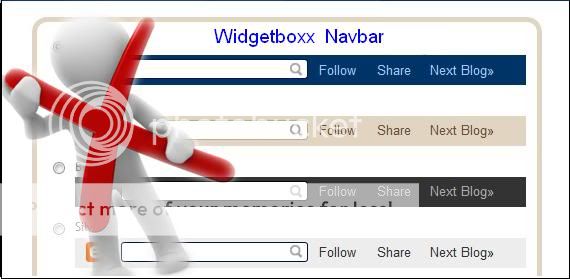
Navbar is part of Blogger which you can Share,Follow,Report blog,and Etc..Some of bloggers wants to remove that Navbar so i post One of many Tricks on how you can remove navbar...


How to remove Blogger Navbar?

Fist log in to your Blogger account
Click on Design,click on Edit Html Tab

Before you try this make sure to backup your templates just incase.
Now find this piece of code
/* Variable definitions
Immediately before that paste this code below
#navbar-iframe {
display: none !important;
}
Then click Preview first,
Then hit Save.

Disable Right Click


Have you noticed, that some web sites do not allow their visitors using right mouse click while pointer is on the blog area. This option is useful for the site and blog owners, who want to minimize the possibilities of the content direct copying to other posts. Right click on any internet browser is very important element and we must use it when it comes to copy or editing texts and etc. It’s very important when it comes to webmasters too. but some people may use it in a bad way, and you may want to make click right disabled on your blog. to protect you text, images links and etc.


Sign in to your Blogger dashboard > layout
Add a Page element > html/javascript

Copy Code below and paste on html/js box
<SCRIPT language=JavaScript>
<!-- http://www.spacegun.co.uk -->
    var message = "Sorry...the work is copyrighted";
    function rtclickcheck(keyp){ if (navigator.appName == "Netscape" && keyp.which == 3){     alert(message); return false; }
    if (navigator.appVersion.indexOf("MSIE") != -1 && event.button == 2) {     alert(message);     return false; } }
    document.onmousedown = rtclickcheck;
</SCRIPT>
You can change the text in red color,with your own text.
Then save.
Sign up for FREE daily Updates.